Overview
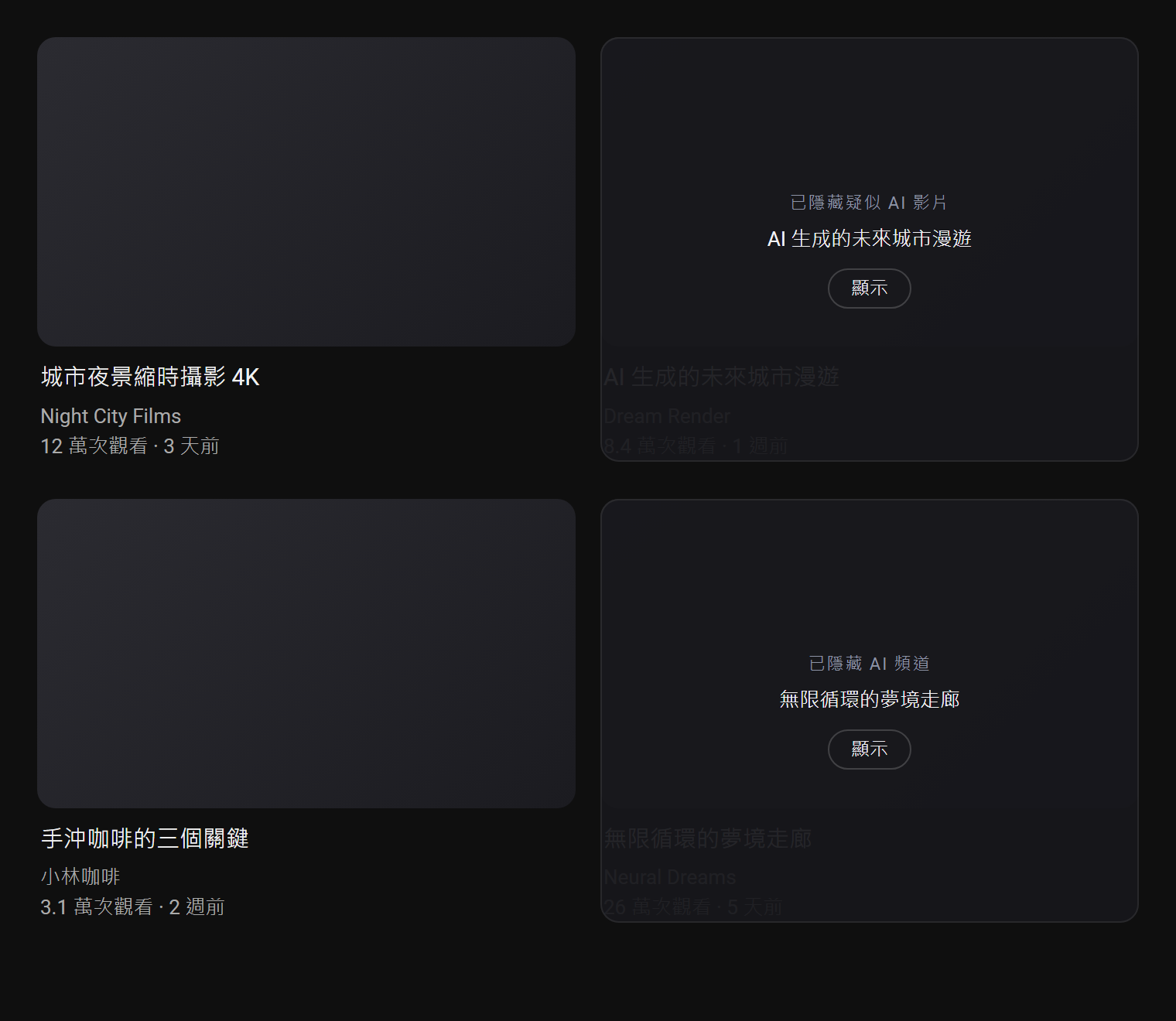
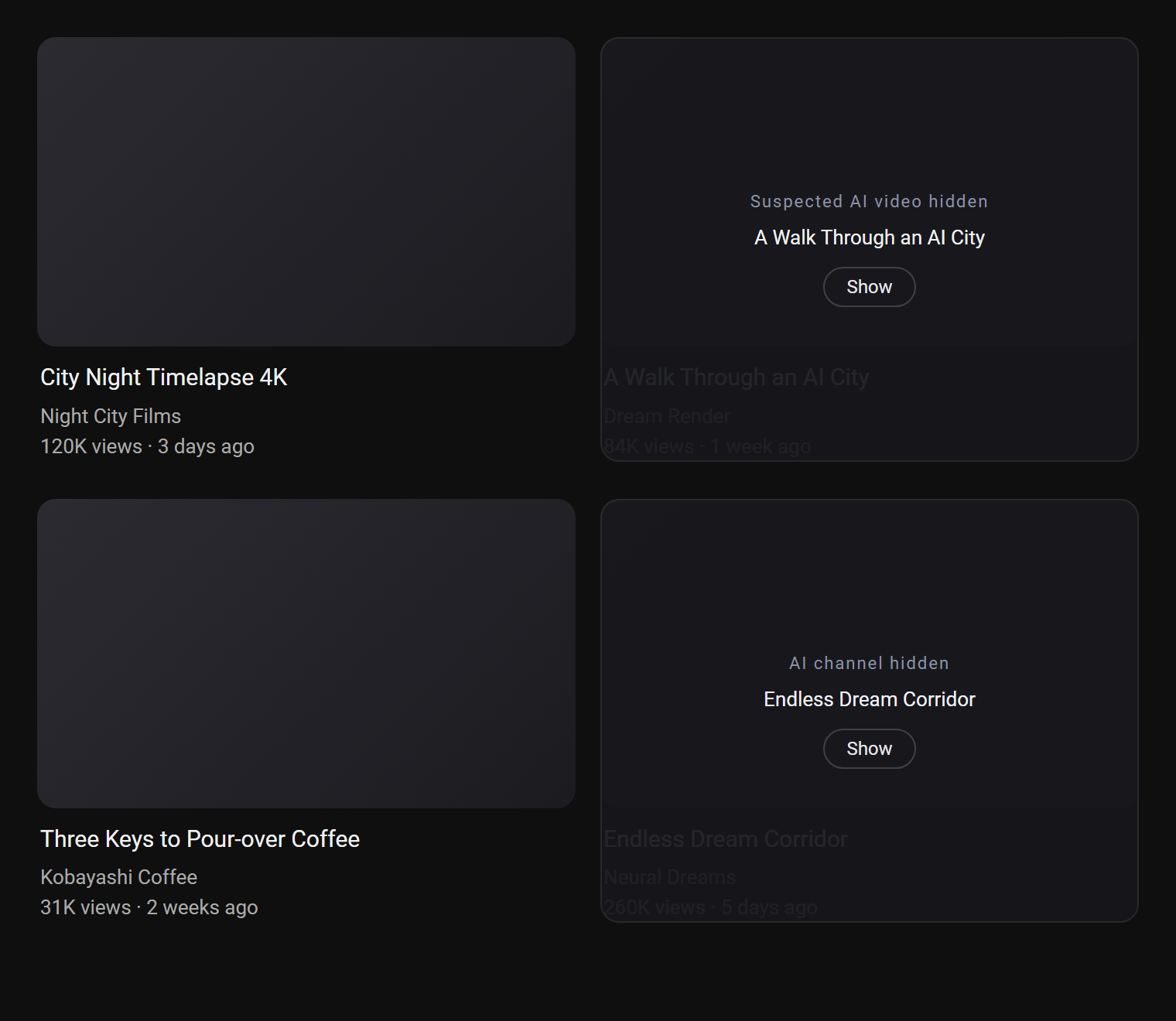
Artifex hides AI-generated videos on YouTube. It has two parts and both need to be installed: a Windows desktop app that stays in the system tray, and a browser extension for Chrome or Edge. The analysis runs locally on your own computer. When the desktop app is not running, the browser extension shows that it is not connected.
Installing
Desktop app
Download it from the button at the top of this page and run it. It opens once the install finishes and then stays in the system tray.
Extension
Install the desktop app first, then restart the browser. Chrome picks the extension up from the Web Store and asks whether to enable it; one click and you are done. You can also install it straight from the store page.
| Step | Action |
|---|---|
| 1 | Install the desktop app and close every browser window. |
| 2 | Start the browser again and choose to enable Artifex when it offers. |
| 3 | Or add it yourself from the Chrome Web Store. |
| 4 | Open YouTube. |
Edge needs one extra switch. Artifex is published on the Chrome Web Store only, so Edge shows the prompt once Allow extensions from other stores is turned on in edge://extensions. Installing from the store page works either way.
Desktop app
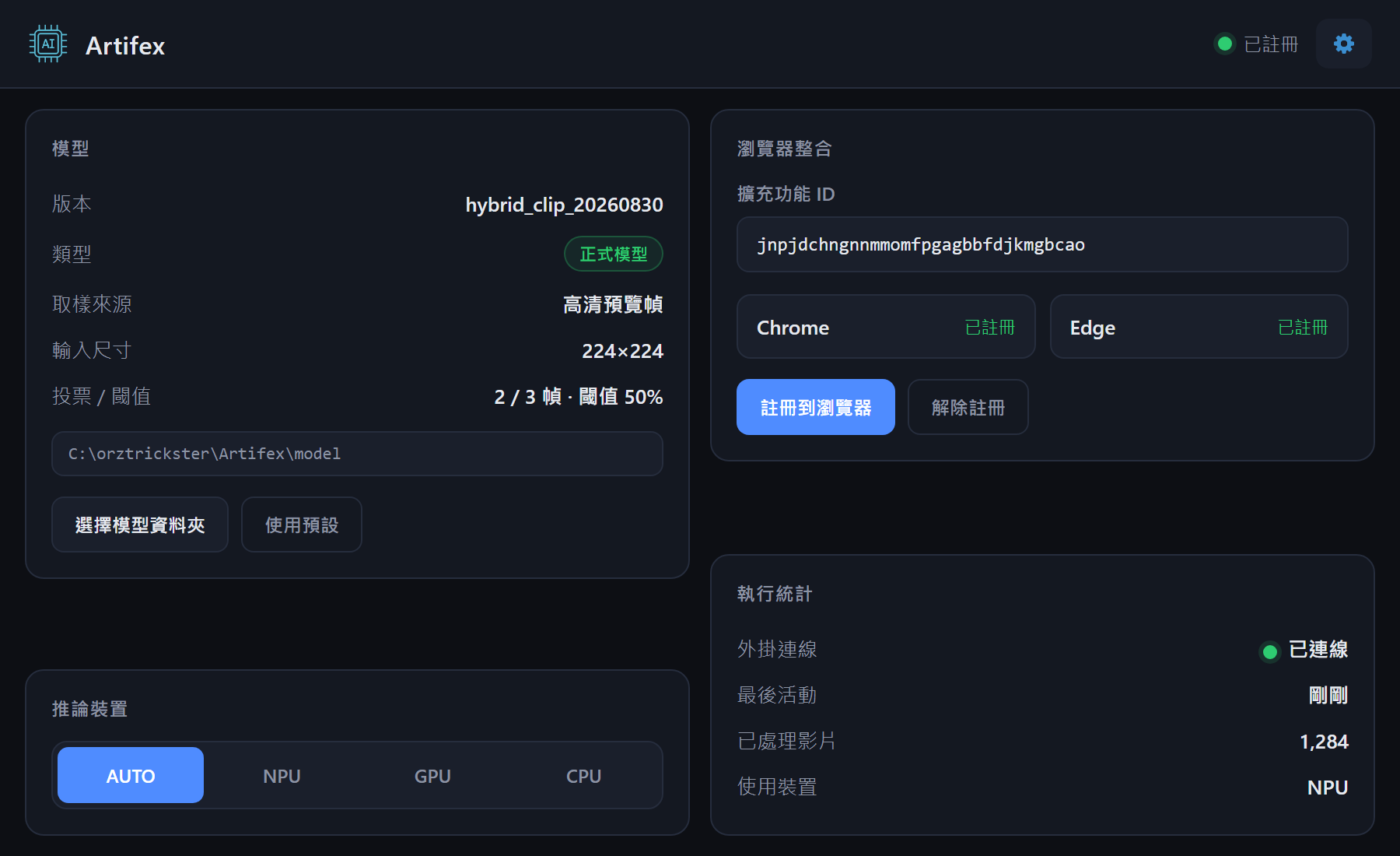
Leave it running; no day-to-day operation is needed. Open the window to check that Chrome and Edge are connected, or to see how many videos have been processed.
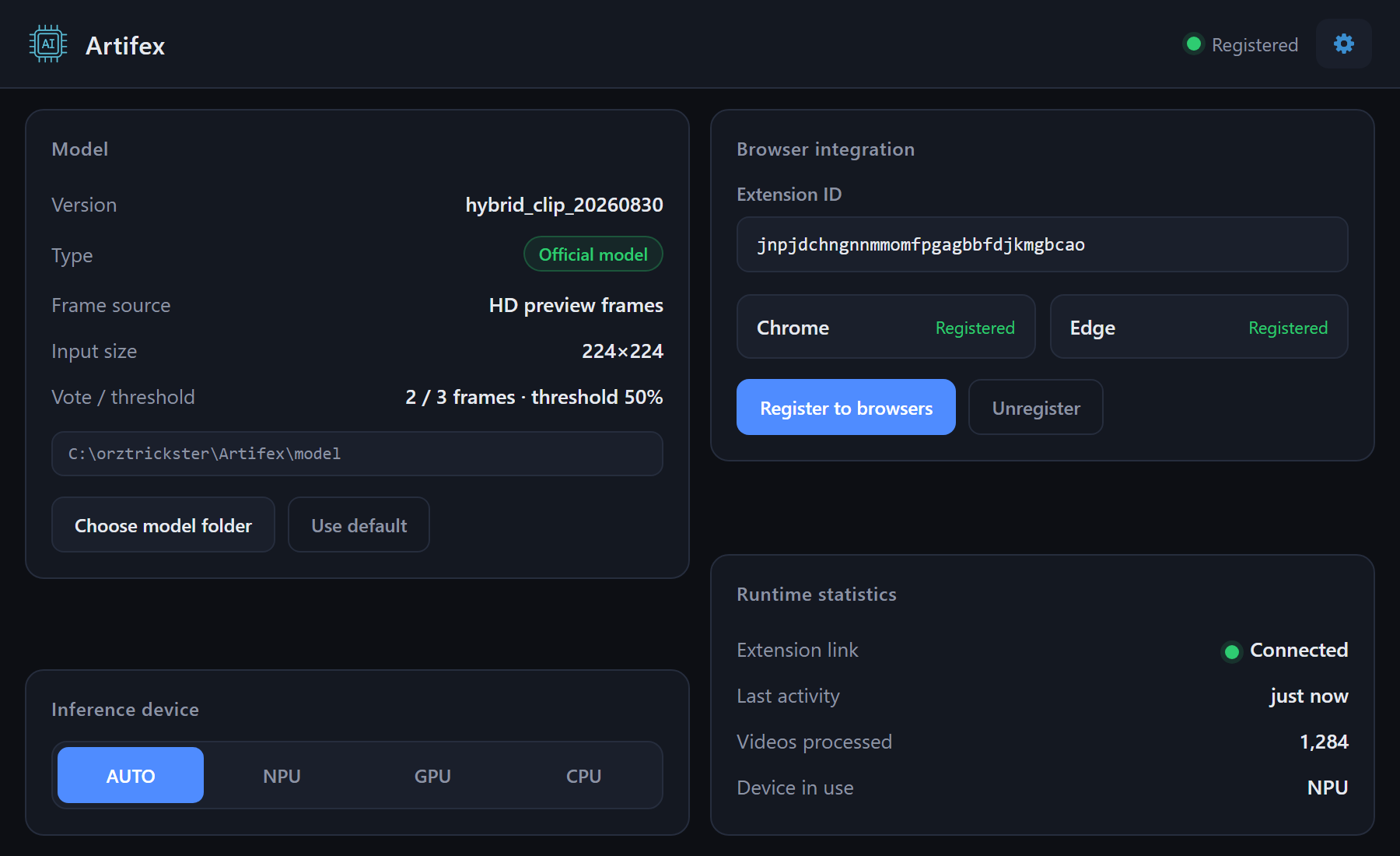
Inference device selects the chip to use; leave it on AUTO unless there is a reason to change it. The gear at the top right holds the language, problem reports and the data folder.
Extension
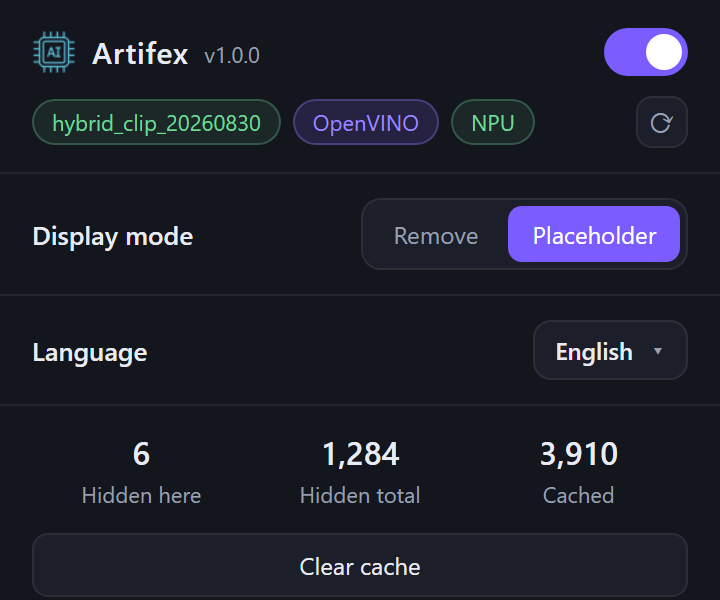
Click the Artifex icon in the toolbar.
| Control | Function |
|---|---|
| Switch | Turns Artifex off for the whole browser. |
| Display mode | Remove takes the card out of the page. Placeholder covers it and keeps a Show button. |
| Language | Ten languages. Follows the browser unless one is chosen. |
| Counters | Hidden on this page and in total, with a button to clear them. |
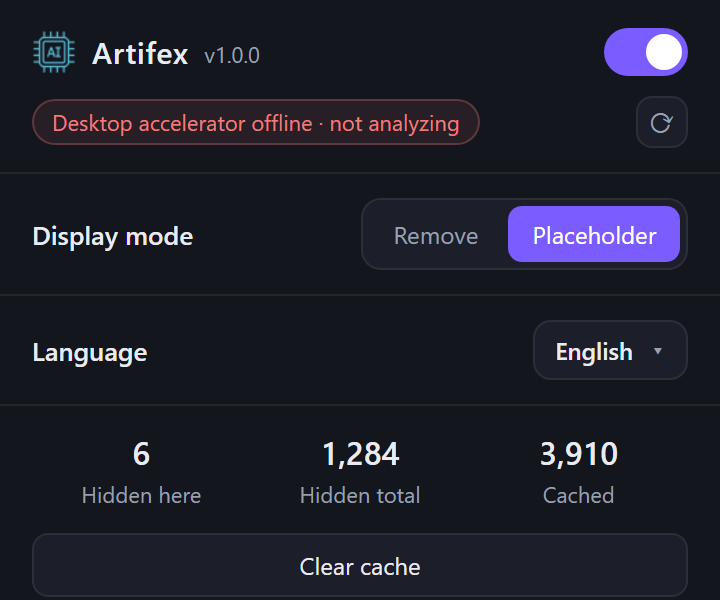
When the desktop app is closed the popup says so, and nothing on YouTube changes.
Reporting
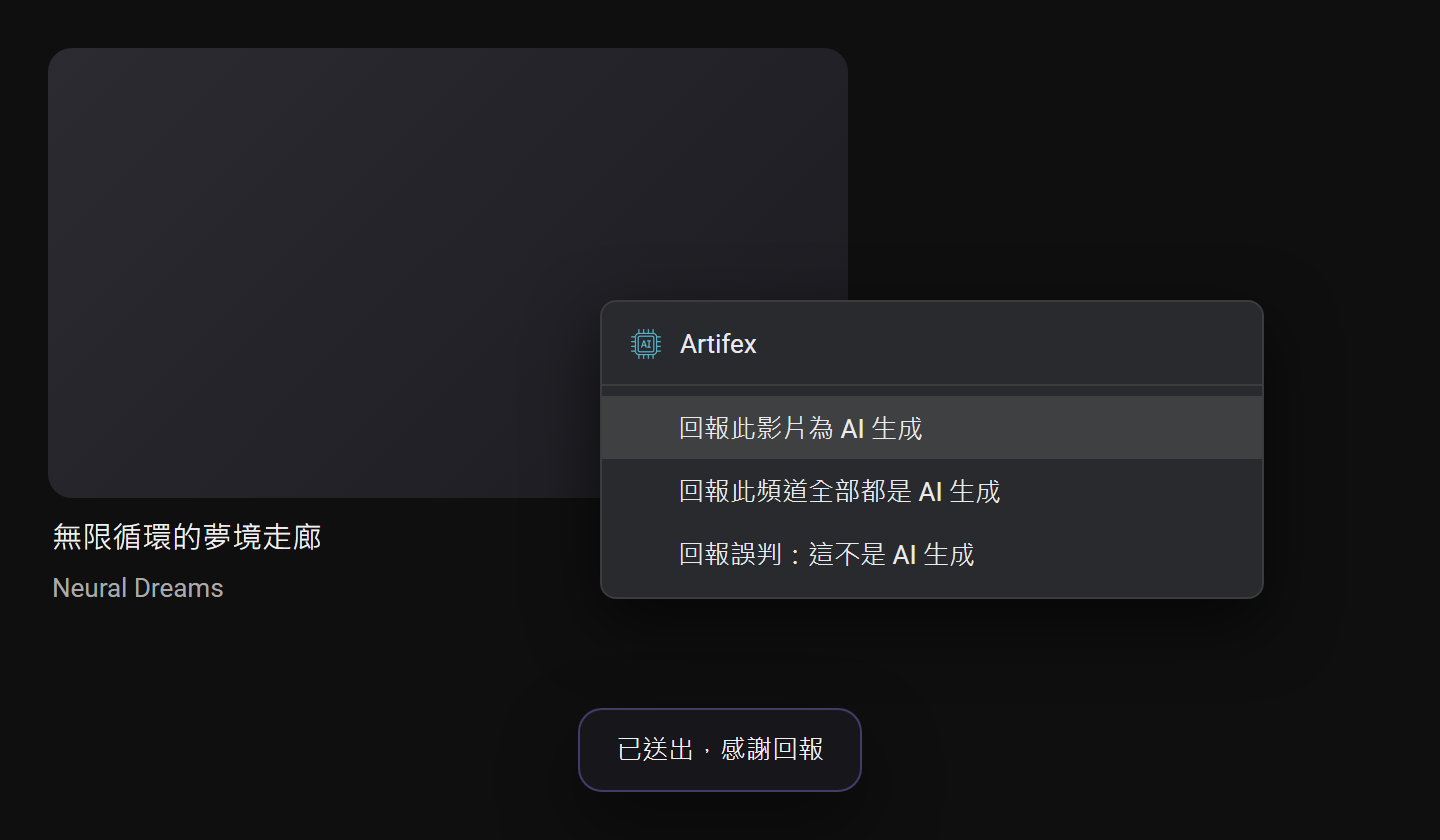
Right-click on YouTube and open the Artifex menu. Three reports are available: this video is AI-generated, this whole channel is AI-generated, this video was hidden by mistake.
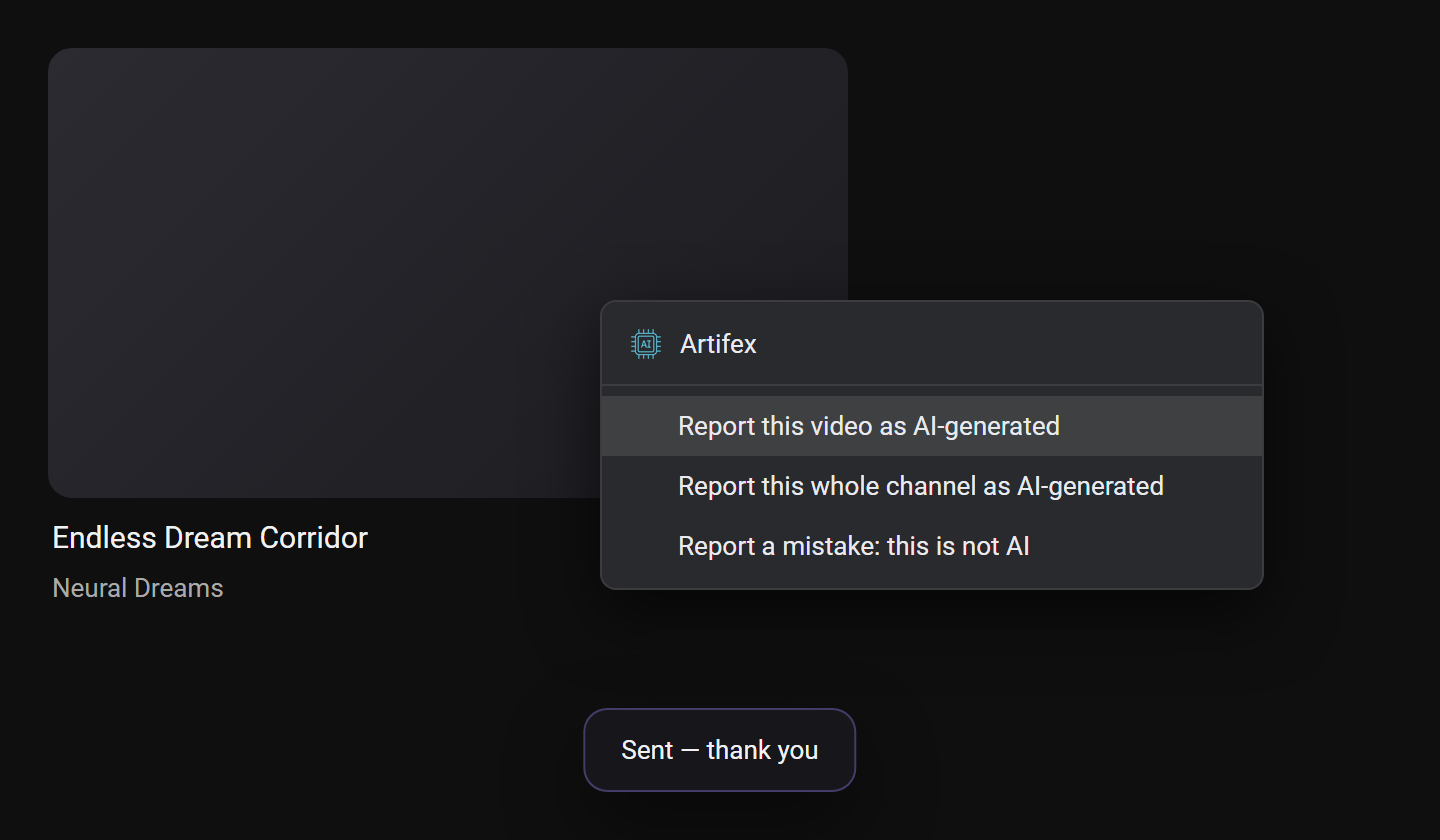
The YouTube player has its own right-click menu, so right-click outside the player — on a thumbnail, a card or the page background.
Notes
| Runs on | Windows, with Chrome or Edge. |
| Viewing history | Stays on the computer and is not sent anywhere. |
| Accuracy | Artifex decides on its own rather than reading a label from YouTube, so it will miss some and hide the wrong ones. Show and the report menu cover those cases. |
Contact
Questions are welcome: