STLock
軟體簡介 / Overview
STLock 是一款專為多螢幕使用環境設計的滑鼠範圍管理工具。它會將滑鼠游標限制在當前所在的螢幕內,避免使用者在跨螢幕作業時不小心將游標移動到其他螢幕。若需要將游標移動至其他螢幕,只要按住 Ctrl 鍵即可暫時解除限制,放開後又會自動鎖定在當下所處的螢幕。
STLock is a mouse boundary management tool designed for multi-monitor environments. It restricts the cursor to the current screen so that users do not accidentally move the cursor to another screen while working across displays. To move the cursor to another monitor, simply hold the Ctrl key to temporarily disable the restriction; once the key is released, the cursor is locked again to the screen it is currently on.
主要功能 / Main Features
| 功能 / Feature | 繁體中文說明 | English Description |
|---|---|---|
| 螢幕鎖定 Screen Lock | 將滑鼠游標限制在當前所在的螢幕範圍內。 | Restricts the cursor to the boundary of the current screen. |
| Ctrl 切換 Ctrl Toggle | 按住 Ctrl 鍵可暫時跨螢幕,放開後重新鎖定。 | Hold Ctrl to temporarily cross screens; release to relock. |
| 拓樸偵測 Topology Detection | 插入或拔除螢幕時自動重新鎖定當前螢幕。 | Automatically relocks when displays are connected or removed. |
| 開機啟動 Auto Start | 可設定登入 Windows 後背景啟動 STLock。 | Optional auto-start in the background after Windows login. |
| 多種付款 Multiple Payments | 支援台幣、美金(PayPal)、以太幣(ETH)。 | Supports TWD, USD (PayPal), and Ethereum (ETH). |
操作介面 / User Interface
首頁 / Home
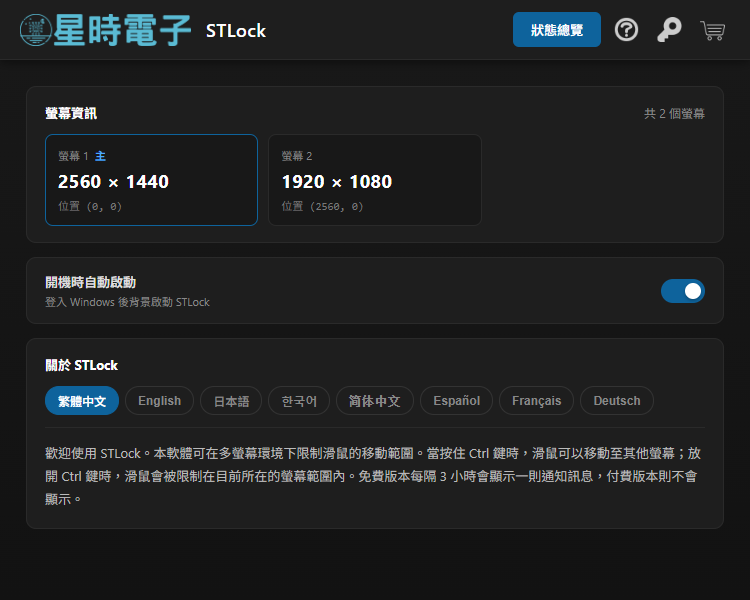
首頁分為三個區塊。最上方為「螢幕資訊」,即時顯示目前接上的螢幕數量、各螢幕的解析度與虛擬座標位置,主螢幕會以藍色邊框與「主」字標籤標示。當使用者插入或拔除螢幕時,該區塊會在數秒內自動更新。中央為「開機時自動啟動」設定,啟用後 STLock 會在登入 Windows 時自動於背景啟動。下方為多語言軟體介紹,目前支援繁體中文、English、日本語、한국어、简体中文、Español、Français、Deutsch 八種語言。
The home view consists of three sections. The top section, Monitor Information, shows the number of currently connected monitors along with their resolutions and virtual coordinates; the primary display is highlighted with a blue border and a “主” label. This section updates automatically within a few seconds when monitors are connected or removed. The middle section contains the Auto Start setting, which enables STLock to launch in the background after Windows login. The bottom section presents the software description in eight languages: Traditional Chinese, English, Japanese, Korean, Simplified Chinese, Spanish, French, and German.
授權管理 / License Management
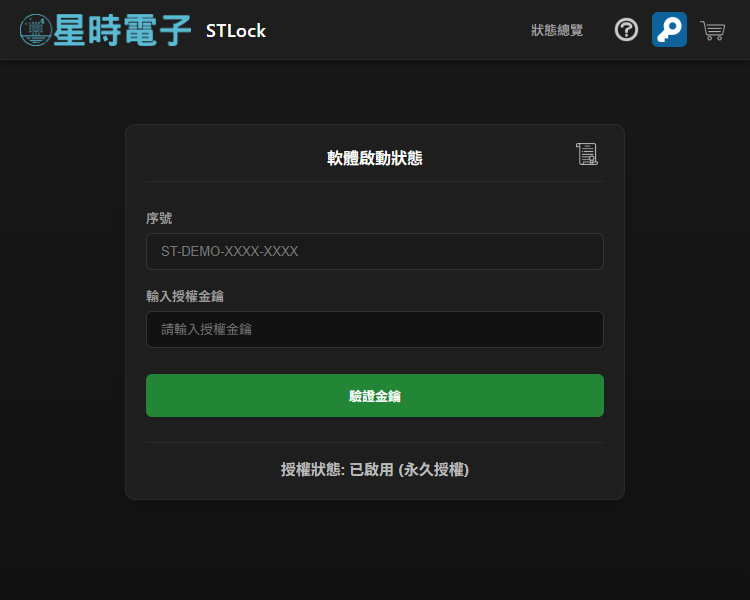
授權管理頁面提供機器序號的查詢、金鑰輸入與驗證。機器序號由 STLock 根據硬體資訊產生,每台電腦獨立。使用者購買授權金鑰後,將金鑰輸入至輸入框並按下「驗證金鑰」即可啟用。畫面下方會即時顯示目前的授權狀態(試用版、已啟用、或附帶到期日的時限授權)。右上角的圖示可開啟版權宣告 PDF。
The license management view provides serial number lookup, key entry, and key verification. The machine serial number is generated from hardware information and is unique to each computer. After purchasing a license key, enter the key in the input field and click 驗證金鑰 (Verify Key) to activate. The current activation status (trial, activated, or activated until a specific date) is shown at the bottom of the panel. The top-right icon opens the copyright declaration PDF.
線上商店 / Online Shop
| 付款方式 Payment | 計價幣別 Currency | 說明 Description |
|---|---|---|
| 綠界 ECPay | 新台幣 TWD | 適合台灣使用者,可使用本地信用卡與超商付款。Suitable for users in Taiwan; supports local credit cards and convenience-store payment. |
| PayPal | 美金 USD | 國際使用者,固定匯率 1 USD = 30 TWD,避免匯率漂移。For international users; fixed rate of 1 USD = 30 TWD to avoid rate drift. |
| ETH | 以太幣 Ethereum | 全球加密貨幣付款,匯率即時自 CoinGecko 取得。Global cryptocurrency payment; rate fetched live from CoinGecko. |
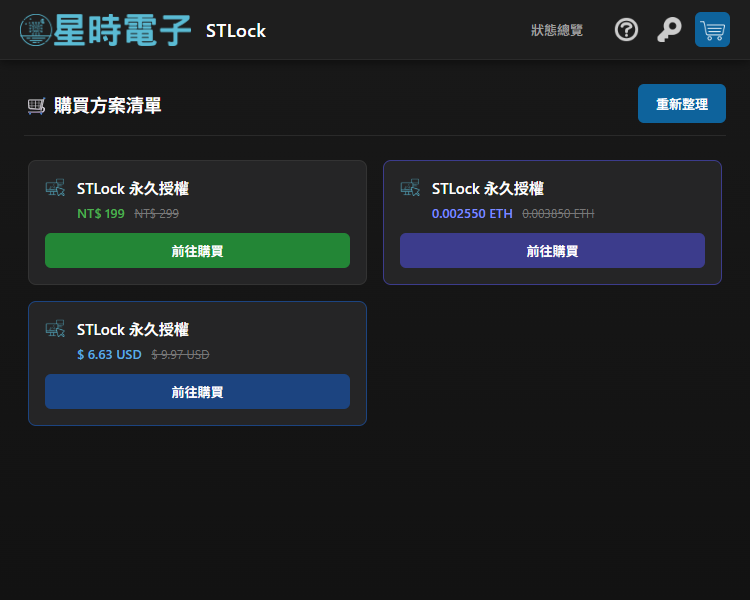
每個商品會同時顯示上述三種付款方式對應的卡片,使用者可依所在地區與偏好選擇。按下「前往購買」按鈕後會以預設瀏覽器開啟對應的結帳頁面。商店清單會根據目前的授權狀態自動隱藏不適用的商品(例如已是永久授權時不再顯示授權加購)。
Each product is presented as three cards covering the payment methods above; users may choose by region and preference. Clicking 前往購買 (Buy) opens the corresponding checkout page in the default browser. The shop list automatically hides products that do not apply to the current license status (for example, license upgrades are hidden once a permanent license is owned).
試用提示 / Trial Notice
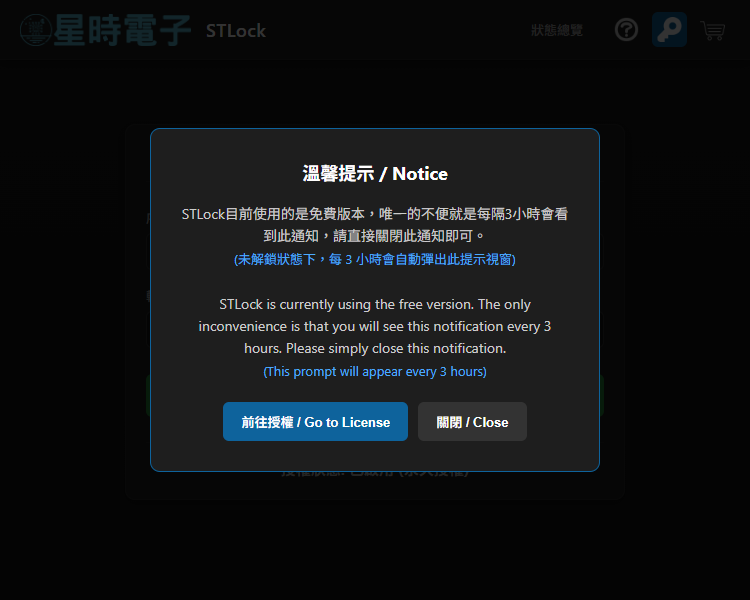
免費版本與付費版本在功能上沒有差異,唯一的不便是免費版本每隔 3 小時會自動彈出此提示視窗,提醒使用者考慮取得正式授權。提示視窗可直接關閉,或點選「前往授權 / Go to License」進入授權管理頁面輸入金鑰。
The free version and the paid version are functionally identical; the only inconvenience is that the free version pops up this notice every 3 hours to remind the user to consider obtaining a license. The notice can be closed directly, or the user may click 前往授權 / Go to License to enter the license management page and submit a key.
操作流程 / Workflow
| 步驟 Step | 繁體中文 | English |
|---|---|---|
| 1 | 啟動 STLock。程式會在系統匣(右下角)出現圖示,並自動將滑鼠鎖定於當前所在的螢幕。 | Launch STLock. An icon appears in the system tray (bottom-right) and the cursor is automatically locked to the current screen. |
| 2 | 平常正常使用滑鼠,無感的限制在當前螢幕內。 | Use the mouse normally; movement is transparently constrained within the current screen. |
| 3 | 需要跨螢幕時,按住 Ctrl 鍵將游標移到目標螢幕,放開 Ctrl 即在新螢幕重新鎖定。 | To cross screens, hold Ctrl, move the cursor to the target screen, and release Ctrl to relock on the new screen. |
| 4 | 插入或拔除螢幕後,STLock 會在數秒內自動重新鎖定於目前所在的螢幕。 | After connecting or removing displays, STLock relocks within a few seconds to the current screen. |
| 5 | 透過系統匣右鍵選單可顯示主介面、輸入金鑰、開啟官網或關閉程式。 | The tray right-click menu provides options to show the main window, enter a key, open the website, or quit. |
系統需求 / System Requirements
| 項目 / Item | 需求 / Requirement |
|---|---|
| 作業系統 Operating System | Windows 10 (64-bit) 或更新版本 / Windows 10 (64-bit) or later |
| 螢幕數量 Display Count | 支援單螢幕、雙螢幕及多螢幕(3 個或以上) / Single, dual, and multi-monitor (3 or more) configurations |
| 網路連線 Network | 取得商品清單、即時匯率、購買金鑰時需要 / Required to fetch product lists, live exchange rates, and to purchase keys |
| 背景模式 Background Mode | 可常駐於系統匣,記憶體佔用低 / Resides in the system tray with low memory footprint |
© 星時電子 orztrickster.com